In our previous article we already show BME280 data on ThingSpeak Cloud. In this article we change some parameter to display data in Google Sheet along with OLED display. Google Sheets is a free, web-based spreadsheet application developed by Google, part of the Google Workspace suite (formerly G Suite). Launched in 2006, it has become a popular alternative to traditional spreadsheet programs like Microsoft Excel due to its accessibility, collaboration features, and integration capabilities.Key Features of Google Sheets:
Real-Time Collaboration: Multiple users can work on the same spreadsheet simultaneously, seeing each other’s changes instantly. This feature makes it ideal for teamwork, remote collaboration, and classroom projects.
Cloud Storage and Accessibility: Since Google Sheets operates in the cloud; all your spreadsheets are saved automatically to Google Drive. You can access your files from any device with an internet connection, whether it’s a computer, tablet, or smartphone.
Compatibility and Integration: Google Sheets seamlessly integrates with other Google services such as Google Forms, Google Docs, and Gmail. It also supports importing and exporting Excel files (.xls, .xlsx), making it easy to switch between platforms.
Powerful Functions and Formulas: Google Sheets offers a wide range of built-in functions for data analysis, including mathematical, statistical, financial, and logical operations. Users can create complex formulas to analyze data efficiently.
Add-ons and Extensions: Users can enhance functionality by installing add-ons from the Google Workspace Marketplace, such as data visualization tools, advanced formulas, or automation scripts.
Automation with Google Apps Script: For advanced users, Google Apps Script enables automation and customization of spreadsheets through JavaScript-based scripting.

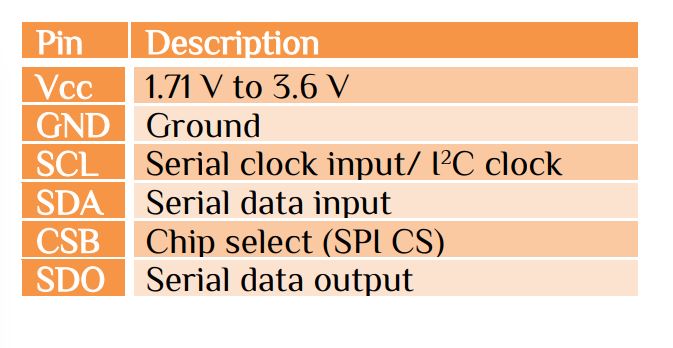
Now it times to download some driver for our project. Let’s begin with some settings-
- Install the latest version of Arduino : https://www.arduino.cc/en/software/
- In Arduino: File>Preferences>Setting : http://arduino.esp8266.com/stable/package_esp8266com_index.json
- In Arduino Install: Tools>Board>esp8266
- In Arduino: Tools>Board>esp8266>Generic ESP8266 Module
- In Arduino Install: Library Manager
- Adafruit SSD1306
- Adafruit GFX Library
- Adafruit BusIO
- Adafruit BME280
Deploying a Google Sheet involves preparing, sharing, and managing access to ensure the spreadsheet is effectively used by intended users. The process can vary depending on the purpose—whether for collaboration, embedding, or automation. For full process please see my YouTube video. Google Script Program-
function doGet(e) {
  var sheet = SpreadsheetApp.openById("Sheet_ID").getActiveSheet();
  var temp = e.parameter.temp ;
  var hum = e.parameter.hum ;
  var press = e.parameter.press ;
  var alt = e.parameter.alt ;
  var heatIndex = e.parameter.hi ;
  var Curr_Date = Utilities.formatDate(new Date(), "GMT+6", "yyyy-MM-dd");
  var Curr_Time = Utilities.formatDate(new Date(), "Asia/Dhaka", 'HH:mm:ss'); // Time in column B
  sheet.appendRow([Curr_Date, Curr_Time,temp, hum, press, alt, heatIndex]);
  return ContentService.createTextOutput("Success");
}
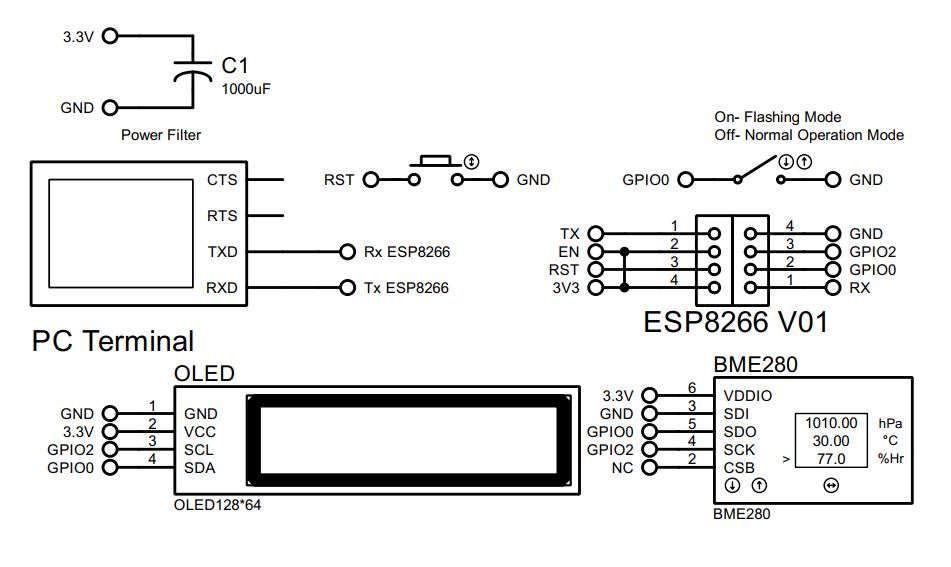
I live in Bangladesh so my Geographical Date & Time is – “Asia/Dhaka” & “GMT+6”. Change according to your Geographical Date & Time. In our entire previous articles we communicate through pipe line port:80 with HTTP protocol. But Google Sheets communicates over HTTPS (port 443), ensuring encrypted, secure data transfer. The platform employs SSL/TLS certificates issued by trusted CAs to authenticate its servers and encrypt data. That’s why Google Sheets can’t operate in AT command mode. If you want to communicate Google Sheet in AT command mode with different microcontroller it will not work.
#include <ESP8266WiFi.h>
#include <WiFiClientSecure.h>
// WiFi & ThingSpeak
const char* ssid = "Your_WiFi_Name";           // provide your WiFi Name
const char* password = "Your_WiFi_Password";   // provide your WiFi Password
const char* host = "script.google.com";        // URL
const int httpsPort = 443;                     // SSL Port
// Change according to gogle script
const char* scriptPath = "AKfycbyJUFW5Y-yGb5vgTeRG63zie2hreilg0GNRLha52TVwJNBJfX_yiI3gqOgzjVgj4CQ3";
// Value to send Google sheet
  WiFiClientSecure client;
  client.setInsecure();  // Disable SSL certificate validation (easier for testing)
  Serial.print("Connecting to ");
  Serial.println(host);
  // Connecting to script.google.com with port 443
  if (!client.connect(host, httpsPort)) {
    Serial.println("Connection failed");
    delay(10000);
    return;
  }
 String url = "/macros/s/"+ String(scriptPath) + "/exec?temp=" + tStr +
               "&hum=" + hStr +
               "&press=" + pStr +
               "&alt=" + aStr +
               "&hi=" + hiStr;

  Serial.print("Requesting URL: ");
  Serial.println(url);

  client.print(String("GET ") + url + " HTTP/1.1\r\n" +
               "Host: " + host + "\r\n" +
               "Connection: close\r\n\r\n");

  while (client.connected()) {
    String line = client.readStringUntil('\n');
    Serial.println(line);
    if (line == "\r") break;
  }

  String response = client.readString();
  Serial.println("Response:");
  Serial.println(response);
Other parameter such as BME280 reading & OLED display is same as my previous article.


 IoTthingHuB


 Visit Today : 57
 Total Visit : 41173